
Uploading files
Introduction
Keeping patient files organized in one place saves time and supports better continuity of care. In Embodia, you can upload files directly to a patient's profile — whether that's imaging results, referral letters, doctor's notes, or completed intake forms — and access them all from a single location in the patient's chart.
How files get added to a patient profile
Files can be uploaded to a patient's profile in two ways:
From a questionnaire — patients can upload files themselves when completing a questionnaire you've shared with them. See Can a patient upload a file? for more details.
From a chart entry — you or a colleague can upload files directly while documenting a patient visit. This requires a chart item set up with a file upload question (see below).
Note: one additional way to upload files on Embodia is by adding supporting documents to an invoice. Learn more in the guide, Generating and sending an invoice.
Setting up file uploads in chart entries
Before you can upload a file through a chart entry, you'll need a chart item that includes a file upload question type.
When creating your chart item, add a question of type File upload.
Once your chart items are set up, open or create a chart entry for the patient, add the appropriate chart item, and upload the file.
Viewing all uploaded files for a patient
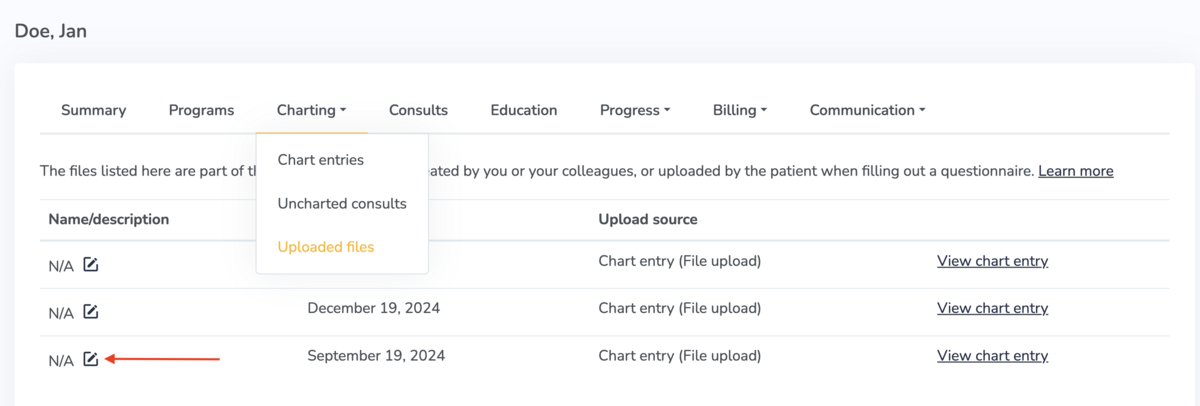
To view all files associated with a patient, go to the patient's profile and select Charting > Uploaded files.

The files listed on this page are:
- The files uploaded by you or one of your colleagues in the clinic as part of a signed chart entry. The upload source will show "Chart entry" along with the name of the chart item in parentheses.
- The files uploaded by your patient when filling out a questionnaire shared with them by you or one of your colleagues. The upload source will show "Questionnaire" along with the name of the questionnaire in parentheses.
To view the full context of the file uploaded, click on View chart entry or View questionnaire, depending on the upload source.
Adding or changing the name of an uploaded file
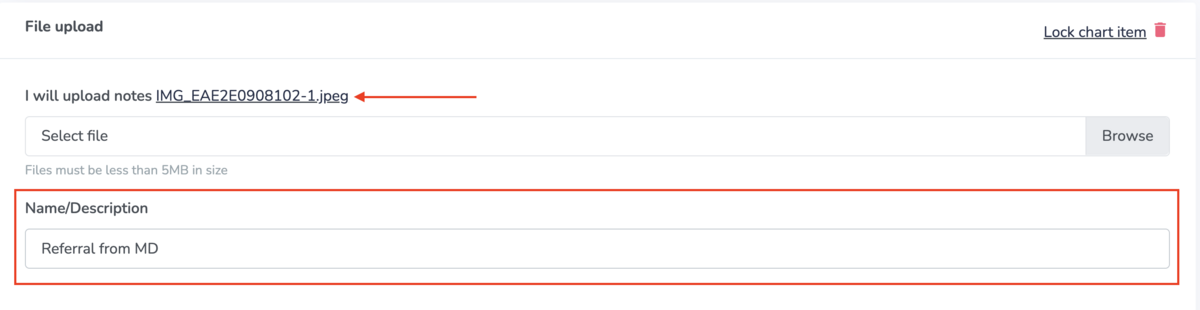
By default, uploaded files keep their original file name. You can rename a file at any time to make it easier to identify.
You can change this in the 'Name/Description' section when you have uploaded a file in the chart:
You can also change the name of an existing uploaded file by going to the patients' profile > Charting > Uploaded files, and then click on the Edit icon next to the uploaded file
Related Guides
- For step-by-step instructions on creating chart items, see Creating chart items.
- For help starting a chart entry, see Creating, signing, and updating patient charts.